Here on I am trying to fully integrate linux into my coding environment. Well when I say fully integrate, I mean explore more into its potential.
Well first I decided to mess around with the bash prompt on the terminal (I use iTerm2 on Mac) and here is the version so thus far (tested cloning a git directory and creating/adding/committing/pushing file):

and yes, I got a dragon on top of my terminal sprouting words of wisdom or silliness or non-sense:
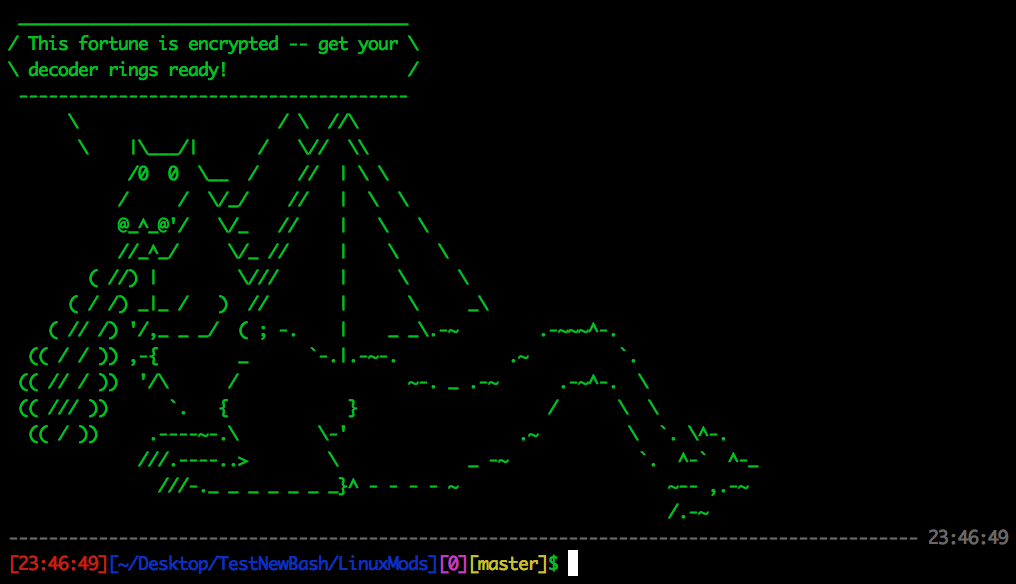
Now to dive into my config file (.bash_profile on Mac and .bashrc on Ubuntu):
1:  fortune | cowsay -f dragon
2:
3:  # get current branch in git repo
4:  function parse_git_branch() {
5:    BRANCH=`git branch 2> /dev/null | sed -e '/^[^*]/d' -e 's/* \(.*\)/\1/'`
6:    if [ ! "${BRANCH}" == "" ]
7:    then
8:      STAT=`parse_git_dirty`
9:      echo "[${BRANCH}${STAT}]"
10:    else
11:      echo ""
12:    fi
13:  }
14:
15:  # get current status of git repo
16:  function parse_git_dirty {
17:    status=`git status 2>&1 | tee`
18:    dirty=`echo -n "${status}" 2> /dev/null | grep "modified:" &> /dev/null; echo "$?"`
19:    untracked=`echo -n "${status}" 2> /dev/null | grep "Untracked files" &> /dev/null; echo "$?"`
20:    ahead=`echo -n "${status}" 2> /dev/null | grep "Your branch is ahead of" &> /dev/null; echo "$?"`
21:    newfile=`echo -n "${status}" 2> /dev/null | grep "new file:" &> /dev/null; echo "$?"`
22:    renamed=`echo -n "${status}" 2> /dev/null | grep "renamed:" &> /dev/null; echo "$?"`
23:    deleted=`echo -n "${status}" 2> /dev/null | grep "deleted:" &> /dev/null; echo "$?"`
24:    bits=''
25:    if [ "${renamed}" == "0" ]; then
26:      bits=">${bits}"
27:    fi
28:    if [ "${ahead}" == "0" ]; then
29:      bits="*${bits}"
30:    fi
31:    if [ "${newfile}" == "0" ]; then
32:      bits="+${bits}"
33:    fi
34:    if [ "${untracked}" == "0" ]; then
35:      bits="?${bits}"
36:    fi
37:    if [ "${deleted}" == "0" ]; then
38:      bits="x${bits}"
39:    fi
40:    if [ "${dirty}" == "0" ]; then
41:      bits="!${bits}"
42:    fi
43:    if [ ! "${bits}" == "" ]; then
44:      echo " ${bits}"
45:    else
46:      echo ""
47:    fi
48:  }
49:
50:  function nonzero_return() {
51:    RETVAL=$?
52:    # [ $RETVAL -ne 0 ] &&
53:    echo "[$RETVAL]"
54:  }
55:
56:
57:  ############################################
58:  # Modified from emilis bash prompt script
59:  # from https://github.com/emilis/emilis-config/blob/master/.bash_ps1
60:  #
61:  # Modified for Mac OS X by
62:  # @corndogcomputer
63:  ###########################################
64:  # Fill with minuses
65:  # (this is recalculated every time the prompt is shown in function prompt_command):
66:  fill="--- "
67:
68:  reset_style='\[\033[00m\]'
69:  status_style=$reset_style'\[\033[00;90m\]' # gray color; use 0;37m for lighter color
70:  prompt_style=$reset_style
71:  command_style=$reset_style #'\[\033[1;29m\]'01; # black
72:
73:  # Prompt variable:
74:  tt="\[\e[00;31m\][\[\e[m\]\[\e[00;31m\]\t\[\e[m\]\[\e[00;31m\]]\[\e[m\]"
75:  uh="\[\e[00;32m\][\[\e[m\]\[\e[00;32m\]\u\[\e[m\]\[\e[00;37m\]@\[\e[m\]\[\e[00;34m\]\h\[\e[m\]\[\e[00;32m\]]\[\e[m\]"
76:  wd="\[\e[00;34m\][\[\e[m\]\[\e[00;34m\]\w\[\e[m\]\[\e[00;34m\]]\[\e[m\]"
77:  et="\[\e[00;35m\]\[\e[00;35m\]\`nonzero_return\`\[\e[m\]\[\e[m\]"
78:  gt="\[\e[33m\]\`parse_git_branch\`\[\e[m\]"
79:  pt="\[\e[00;32m\]\\$\[\e[m\]"
80:  tag="$tt$wd$et$gt$pt"
81:  PS1="$status_style"'$fill \t\n'"$prompt_style$tag$command_style "
82:
83:  # Reset color for command output
84:  # (this one is invoked every time before a command is executed):
85:  trap 'echo -ne "\033[0m"' DEBUG
86:
87:  function prompt_command {
88:    # create a $fill of all screen width minus the time string and a space:
89:    let fillsize=${COLUMNS}-9
90:    fill=""
91:    while [ "$fillsize" -gt "0" ]
92:    do
93:      fill="-${fill}" # fill with underscores to work on
94:      let fillsize=${fillsize}-1
95:    done
96:
97:    # If this is an xterm set the title to user@host:dir
98:    case "$TERM" in
99:    xterm*|rxvt*)
100:      bname=`basename "${PWD/$HOME/~}"`
101:      echo -ne "\033]0;${bname}: ${USER}@${HOSTNAME}: ${PWD/$HOME/~}\007"
102:      ;;
103:    *)
104:        ;;
105:    esac
106:  }
107:
108:  PROMPT_COMMAND=prompt_command
cowsay - basically ASCII creatures that think or say your message
fortune - fortune cookie sayings
3-48 - these functions are for bringing up git status in the prompt [ezprompt]
50-54 - this function is for bringing up error code in the prompt (error code 0 = success) [ezprompt + a bit of modification]
57-108 - bash prompt layout I found on emilis' git-page - but I modified it to include my color and content format
Helper sites:
ezprompt - helps with building the initial layout with color
jamiedubs - a nice introduction to bash prompt and various formats
colors - contains various options for text and colors
emilis - contains the config to place horizontal separators after execution of a bash command
next up tmux....

